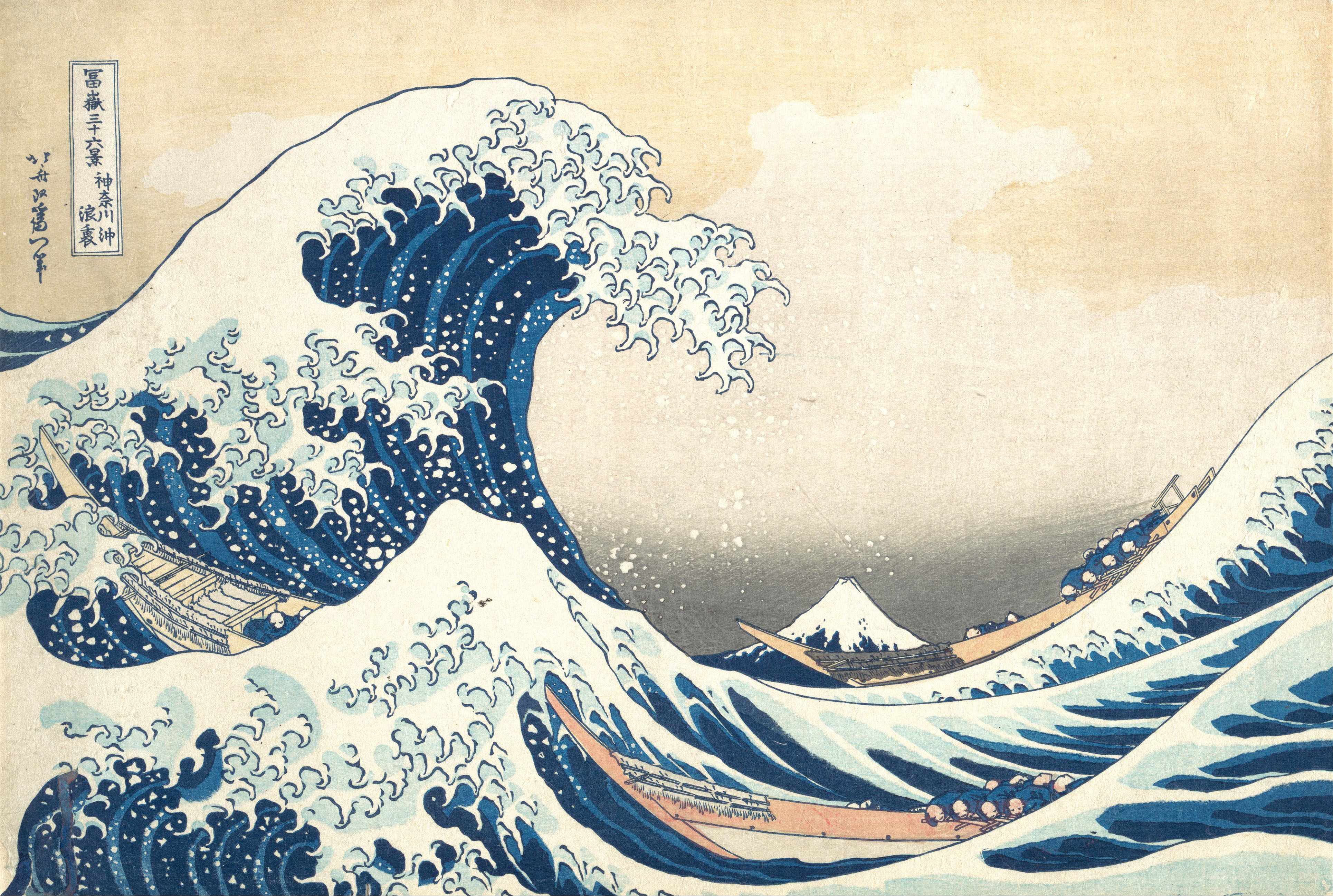
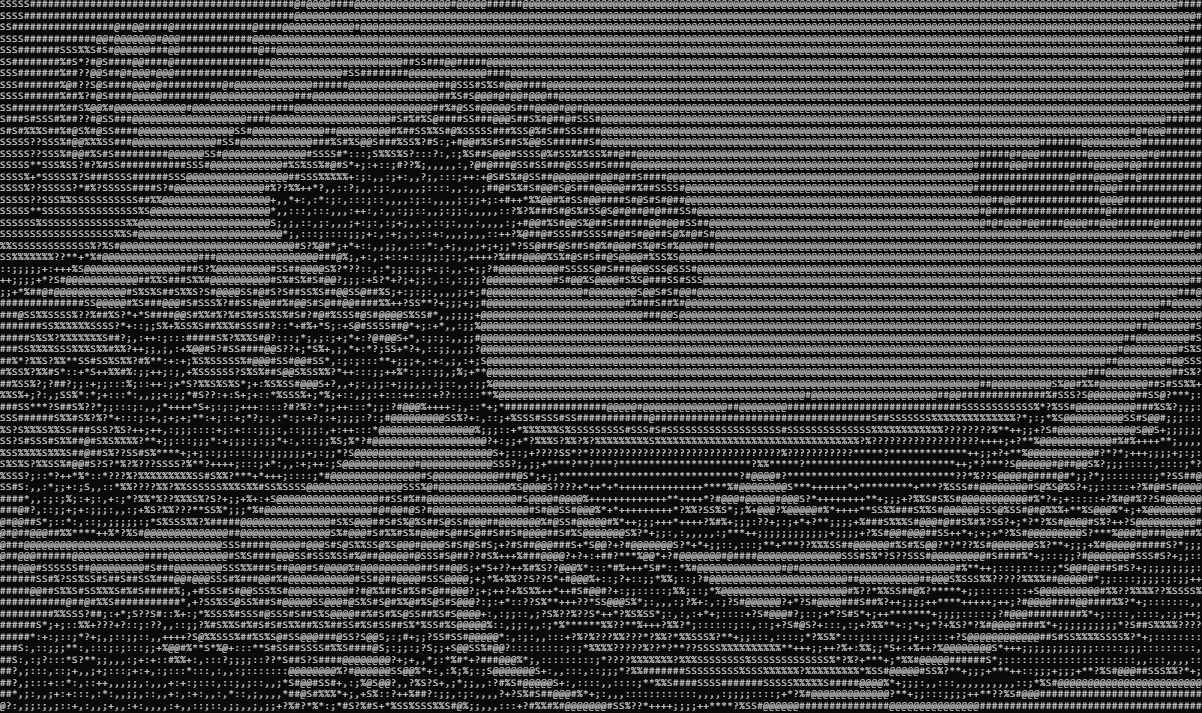
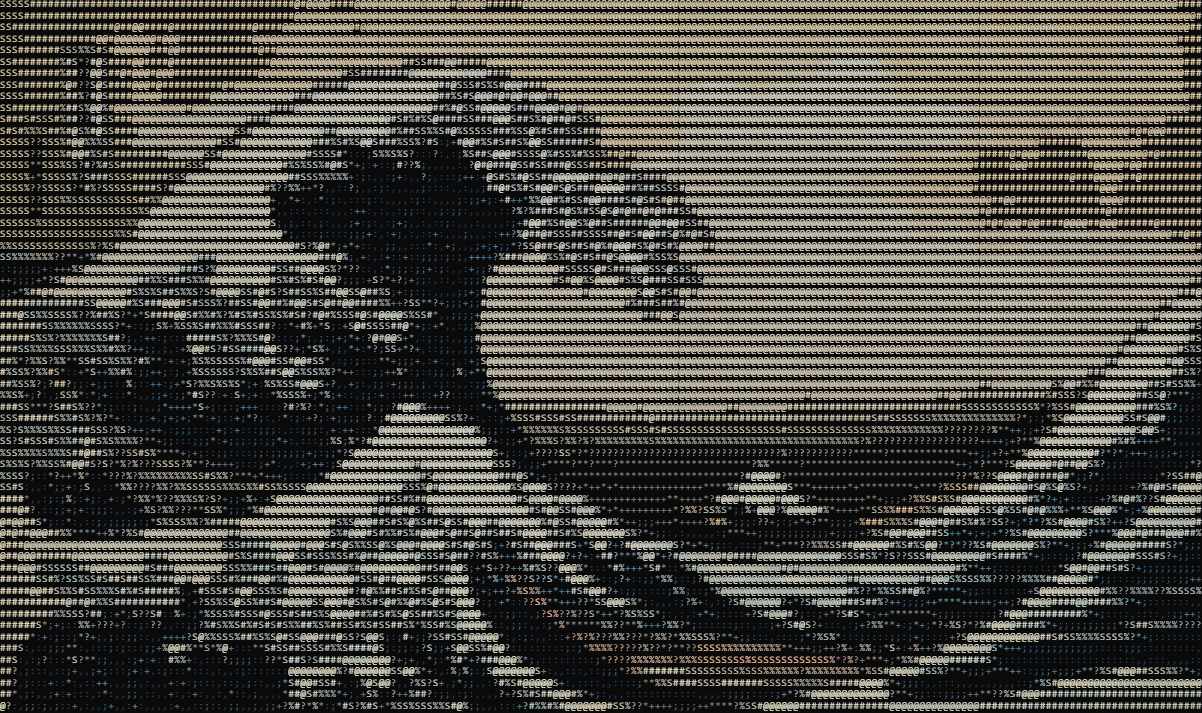
How color ASCII art works
Standard ASCII art encodes an image using only the visual density of characters — darker areas are represented by characters with more ink (like @, #, or M), lighter areas by sparse characters (like . or space). Color information is discarded, and the result is monochrome text.
Color ASCII art adds a second dimension: for every character placed, the tool also reads the R, G, and B values of the corresponding pixel from the original image. It then applies that exact color to the character using a CSS color property in the HTML output. Each character becomes a colored glyph, and the combined result is a mosaic that retains both the luminance structure and the chromatic richness of the original image.
The technical pipeline
Flowfiles processes images entirely in the browser using the Canvas API. Here is what happens when color mode is active:
- The image is drawn onto a hidden HTML canvas element at the target resolution (determined by column width).
- For each pixel column position,
getImageData()samples the pixel's RGBA values. - Luminance is computed as a weighted average:
0.299R + 0.587G + 0.114B. This mimics human perception, where green appears brightest and blue darkest. - The luminance value selects a character from the chosen set (Detailed, Standard, or Blocks).
- The R, G, B values are applied to that character as an inline
style="color:rgb(r,g,b)". - All characters are assembled into a
<pre>block with a dark background for maximum contrast.
The colored HTML export wraps this <pre> block in a minimal self-contained webpage with an embedded monospace font. The PNG export renders the colored preview onto a canvas element and calls toDataURL() to produce a downloadable image.
Which images work best
High saturation and vivid colors
Color ASCII art is most striking when the source image has bold, distinct colors. Digital illustrations, anime screenshots, album art, and graphic logos are ideal. When the colors are vivid and the shapes are clear, the character mosaic retains strong readability alongside the color palette.
Strong contrast
The character selection is still luminance-driven. An image with low contrast will produce characters with similar density across the frame, making the shape hard to read. Use the contrast slider (1.2–1.5×) to amplify tonal differences before enabling color.
Defined subjects
Images with a clear subject against a distinct background produce the most legible results. The subject's shape is rendered in characters, and the color adds vibrancy. Images that are entirely complex textures or noise produce less readable output in color mode.
Avoid very dark images
Dark images produce mostly near-black characters even in color mode. The Invert option can help — it flips the character density mapping so dark areas become light characters, which can reveal color in shadows.
Export formats for color output
Download as colored HTML
The HTML export generates a self-contained webpage. Every character has its color embedded as an inline style. The file includes the monospace font reference and dark background. Open it in any browser and it displays as the colored ASCII art. You can host it, share it, or embed it in projects — no external dependencies.
Download as PNG
The PNG export rasterizes the colored preview at the chosen font size. The larger the font size setting, the higher the output resolution. PNG is the format to use when you want to share the result as an image on social media, Discord, or any platform that doesn't support raw HTML.
Copy to clipboard
Clipboard copy outputs plain text — the characters only, without color. This is useful for terminals, README files, and text editors, but the color information is not portable as plain text. Use HTML or PNG export for color-preserving output.
How to generate color ASCII art
Open the converter — click the button above. No account needed.
Load a colorful image — drag and drop a JPG, PNG, WebP or GIF, or paste with Ctrl+V. Illustrations and vivid photographs work best.
Enable Color mode — check the Color toggle in the options bar. The preview updates immediately.
Tune the settings — adjust column width (80–120 for most images), increase contrast if the image is flat, try Detailed charset for the finest color gradients.
Export — download .html for a self-contained colored webpage, or download PNG for sharing as an image.
Features
FAQ
Open the converter, load your image, and enable the Color toggle. Each character takes the exact RGB color of the pixel it represents. Export as HTML or PNG to preserve the colors — plain text copy does not include color information.
Regular ASCII art encodes luminance only — characters are monochrome. Color ASCII art adds per-character RGB values from the original pixels, applied as inline CSS in the HTML output. The result is a full-color character mosaic.
Download as PNG for sharing on social media, Discord, or any image platform. Download as HTML for a self-contained webpage with all colors embedded. Plain text export does not preserve colors.
Images with vivid saturated colors and strong contrast — digital illustrations, colorful logos, anime art. Avoid very dark or desaturated images. Use the contrast slider at 1.2–1.5× for flat photos.