Change Object Color in a Photo — Shadows and Highlights Kept
Luminosity Preservation · HSL Mode · Hue-only — No Upload, Free
A photographed object in natural light is never a single flat color. Take a butterfly resting on a flower: its wings have a main color — say azure blue — but also lighter zones where light strikes directly, darker zones in the wing folds, and sometimes near-white reflections on the veins. Recoloring this butterfly orange with a basic tool would flatten all these shades into a uniform orange, destroying the natural look of the photo. Flowfiles preserves the original light structure of each object and applies the new color while respecting the shadows and highlights.
Try it on your own photo — load the image, click on the color to change, and watch the result in real time.
Change Object Color →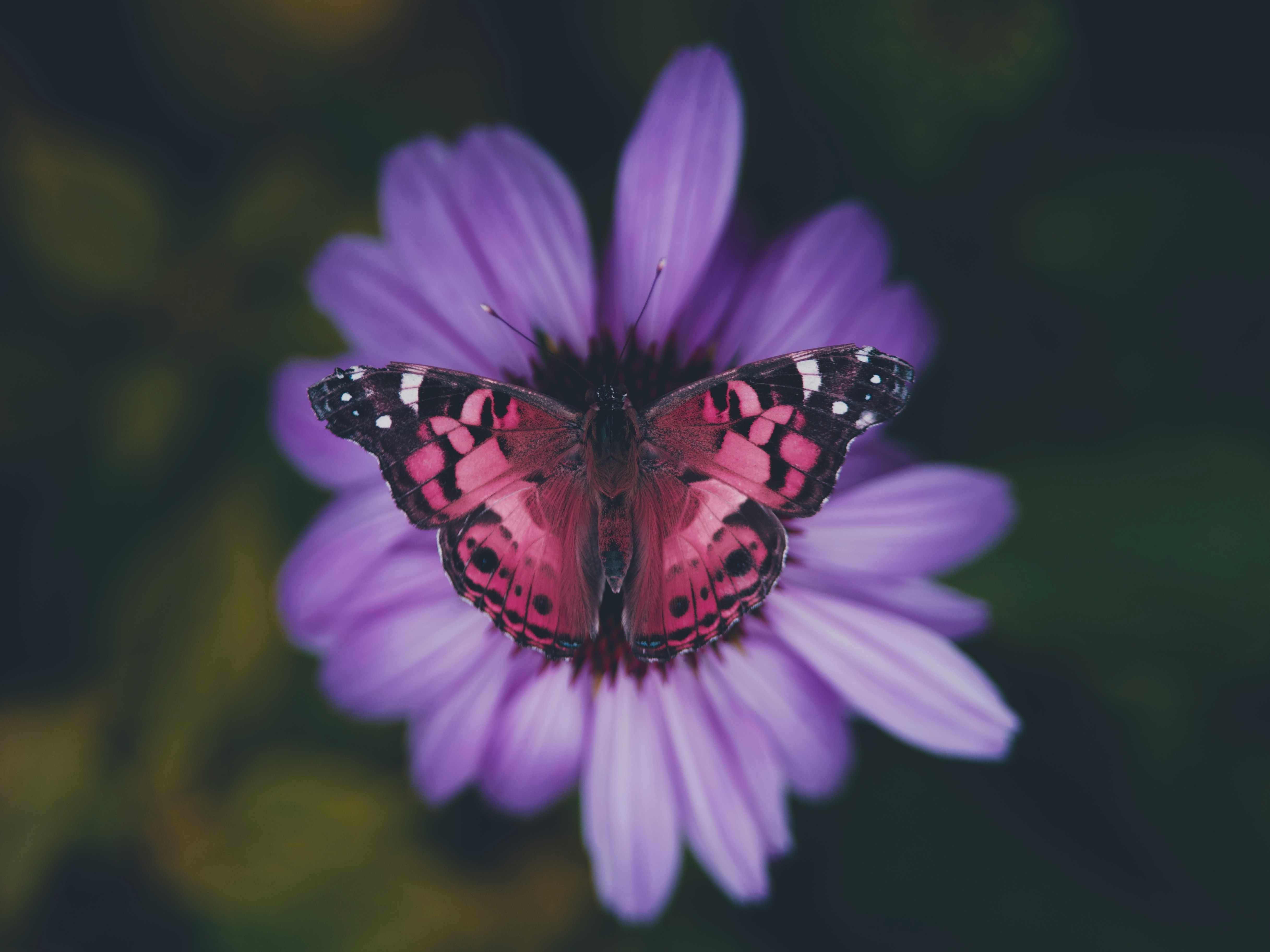
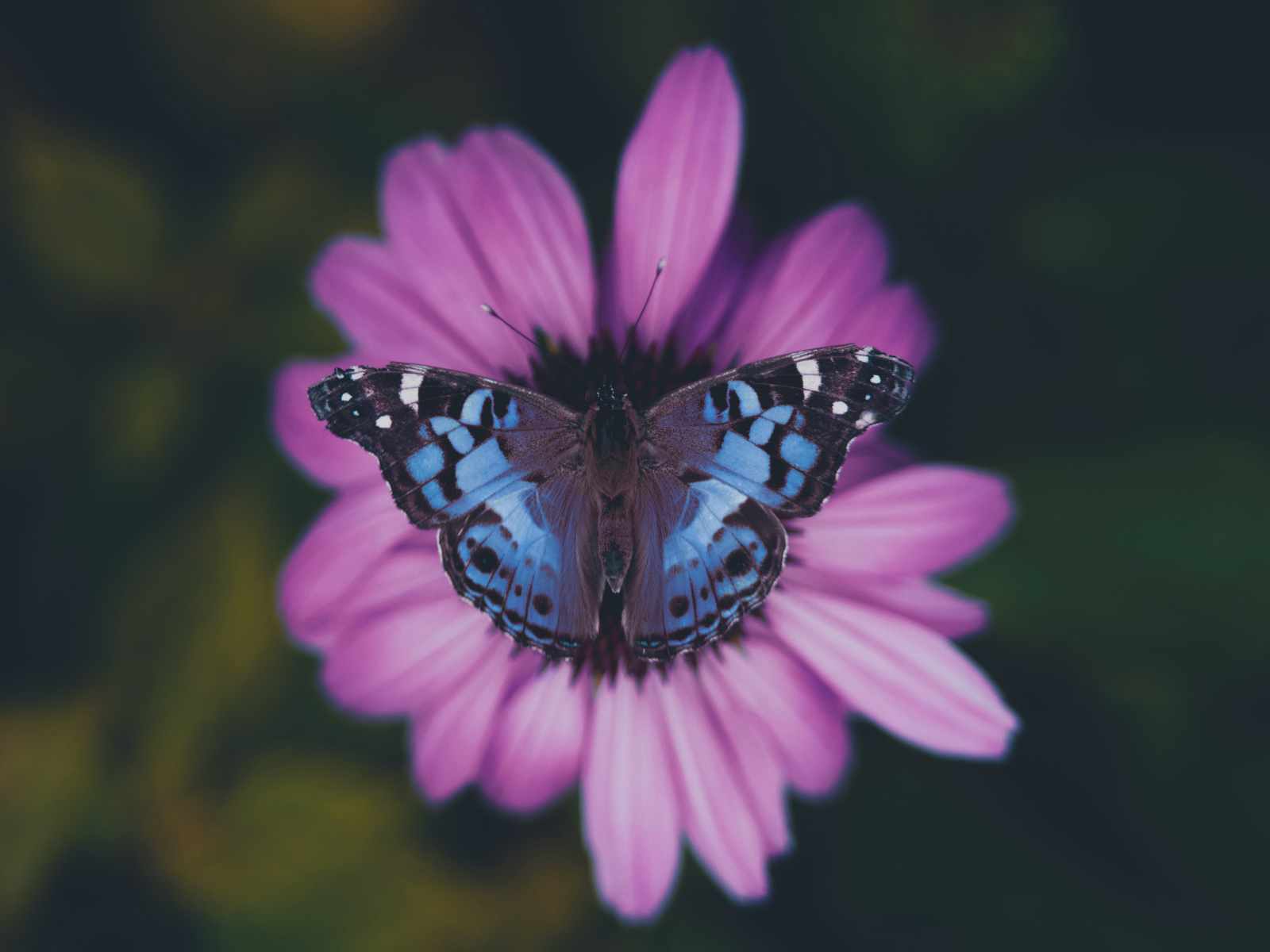
Luminosity preservation: the key to a natural result
Luminosity preservation works on a simple principle. In HSL mode, every color is defined by three values: hue (which color), saturation (how intense) and lightness (how bright). When luminosity preservation is enabled, the tool replaces only the hue and saturation of each pixel, keeping its original lightness value. A dark pixel stays dark, a bright pixel stays bright — only the color changes.
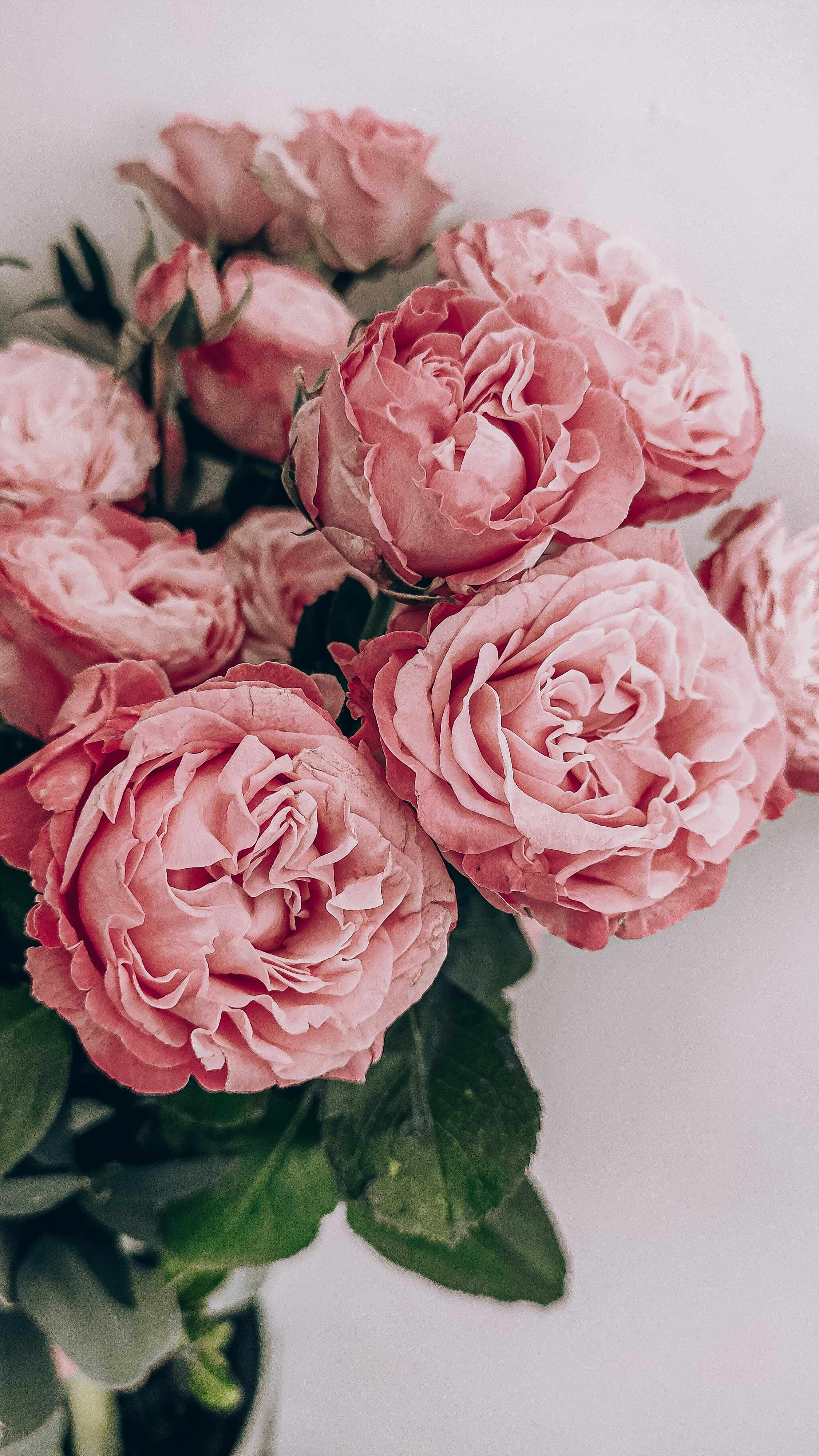
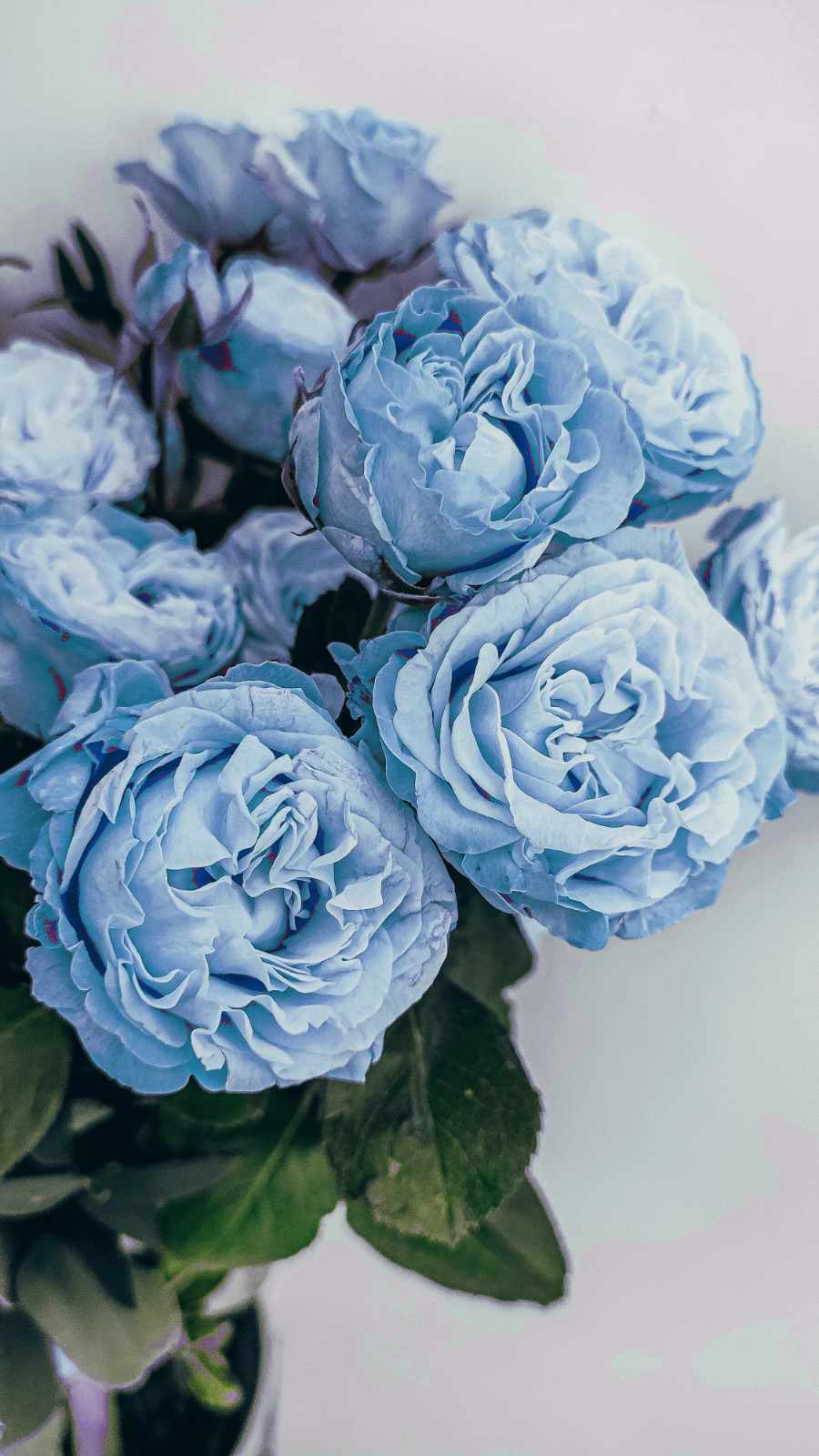
For a red rose you want to turn blue: without preservation, all red pixels — regardless of their shadow level — become the same uniform blue. The rose loses its volume, its petals look painted. With preservation enabled, the lit areas of the rose become light blue, the darker zones become dark blue, the deep shadows remain dark within the chosen blue. The rose keeps its three-dimensionality, its petals retain their texture.
Hue-only mode takes this principle even further. It completely ignores saturation and lightness when comparing pixels to the source color — only the hue counts. This is the most effective mode for subjects with very wide luminosity gradients, like a butterfly whose wing zones are nearly black in the deepest shadows. With this mode, even very dark areas that have almost lost their original hue are correctly identified and included in the replacement.
Frequently asked questions
How do I change a butterfly's color without flattening the wing shading?
Use HSL mode with luminosity preservation enabled. Click on the main wing color with the eyedropper, set tolerance between 40 and 60. Luminosity preservation ensures darker areas of the wing stay dark in the new color, and highlighted areas stay bright. The result keeps the original texture and depth intact.
Can I change rose petal colors while keeping the shadows?
Yes. A red rose has near-white zones on lit petals, vivid red in the mid-tones, and near-brown-red in the deepest shadows. With luminosity preservation enabled, only the hue changes — the light structure of the petals stays intact. Use HSL mode, tolerance 45–60.
What tolerance works best for a 3D object with shadows and highlights?
A tolerance of 45 to 65 in HSL mode generally covers photographic objects well. If very dark shadow zones are not captured, try Hue-only mode, which focuses exclusively on the pixel's hue and ignores lightness entirely.
What if the replacement bleeds into other same-colored objects in the photo?
The tool processes the entire image. If other elements share the same color as the target object, they will be modified too. A practical workaround is to temporarily crop the object, recolor it, then reintegrate it into the original image.