Replace Color in Image Online — Shades and Gradients Preserved
Eyedropper · Tolerance · HSL Mode · Edge Smoothing — No Upload, Free
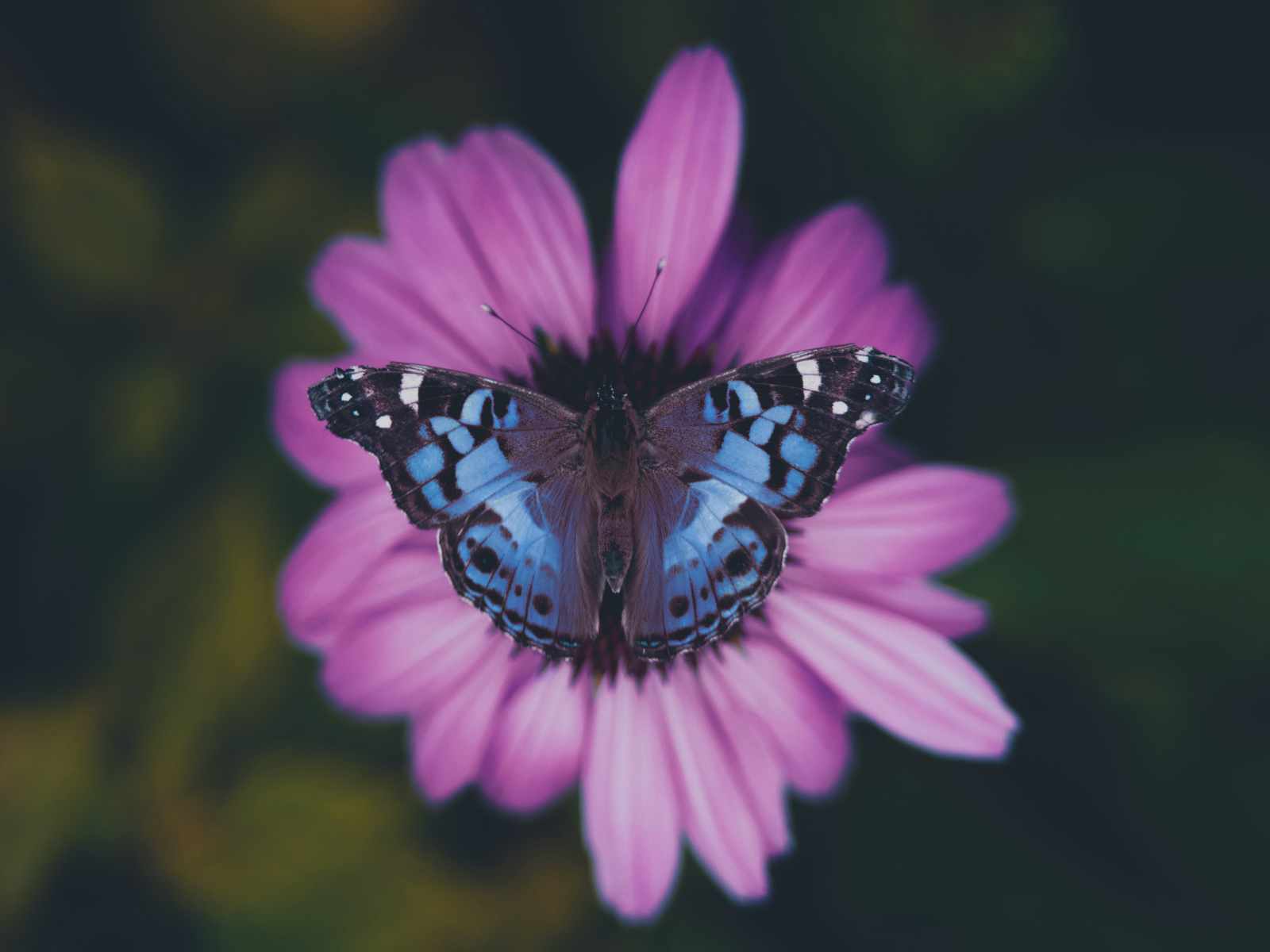
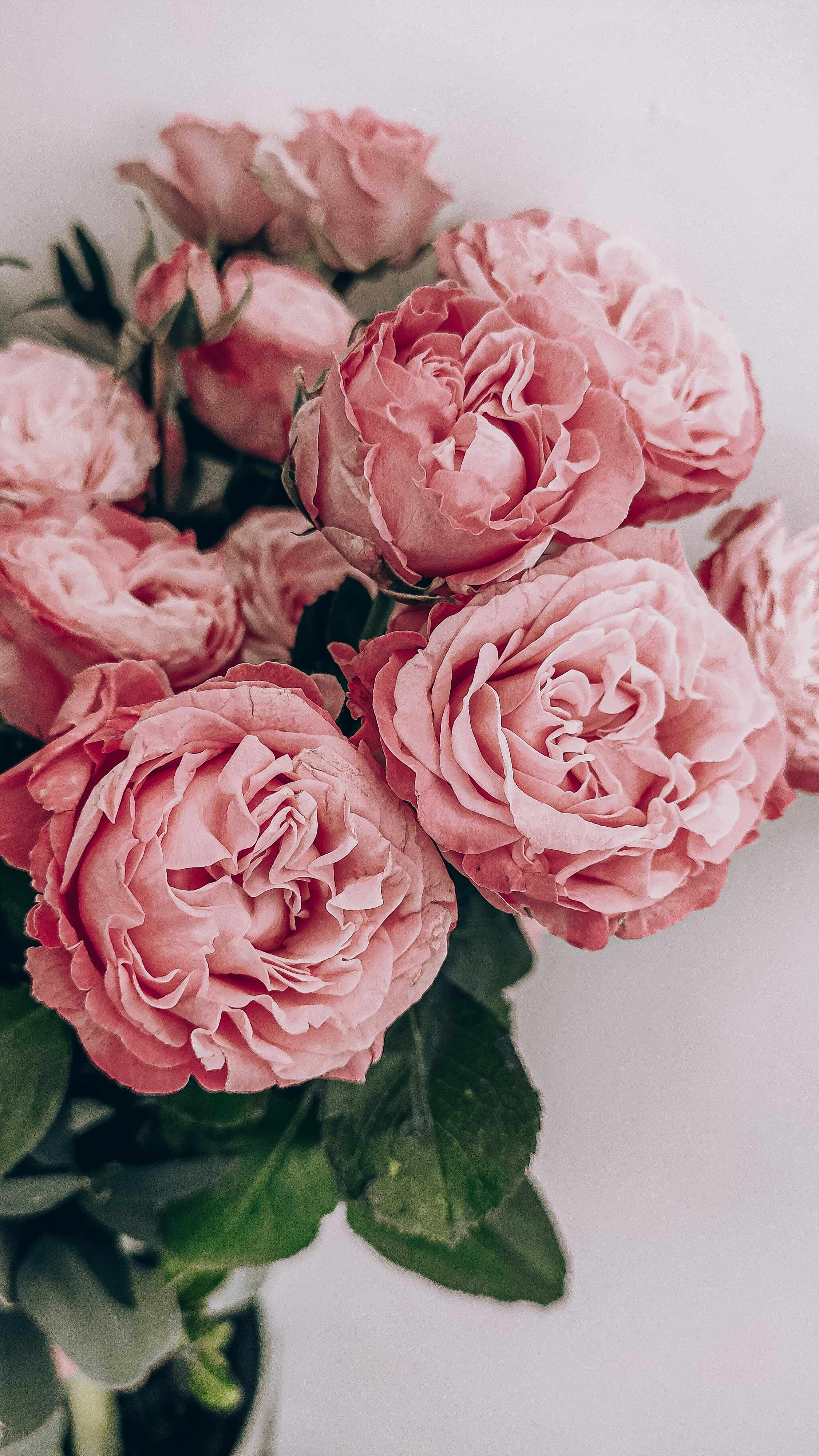
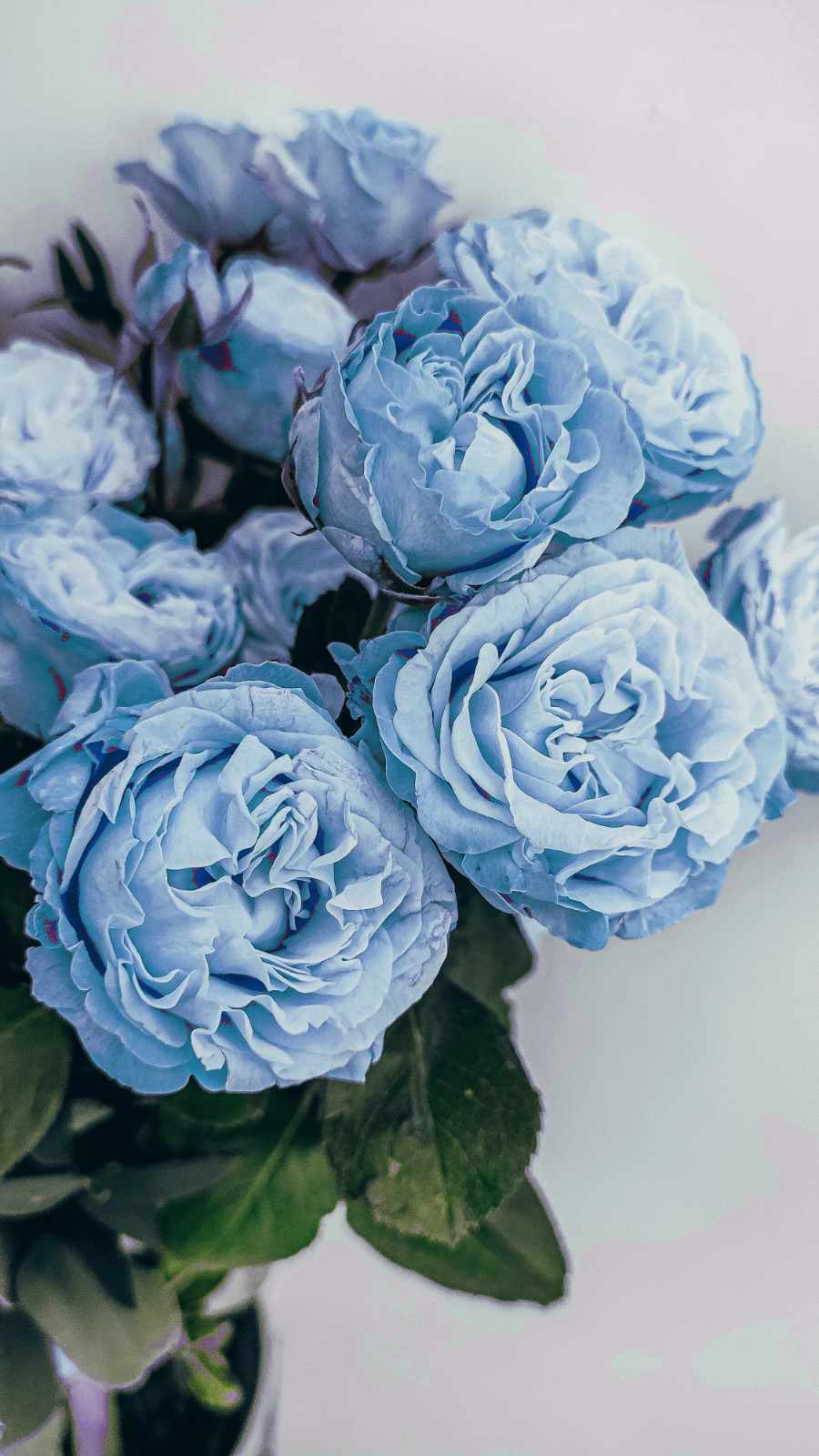
A real photograph is never made of a single flat color. A red rose contains pale pink where light hits directly, deep red in the mid-tones, and near-brown in the deepest shadows. A blue butterfly has bright near-white highlights on the upper wing surfaces and dark blue-purple in the recesses near the body. Replacing this color with a basic paint-bucket approach would flatten all these shades into a uniform, artificial result. Flowfiles analyzes every pixel individually, automatically detects all these tonal variations, and applies the replacement while respecting the original light structure of the image.
Open the color replacer and start immediately — no account needed, nothing stored on a server.
Replace Color in Image →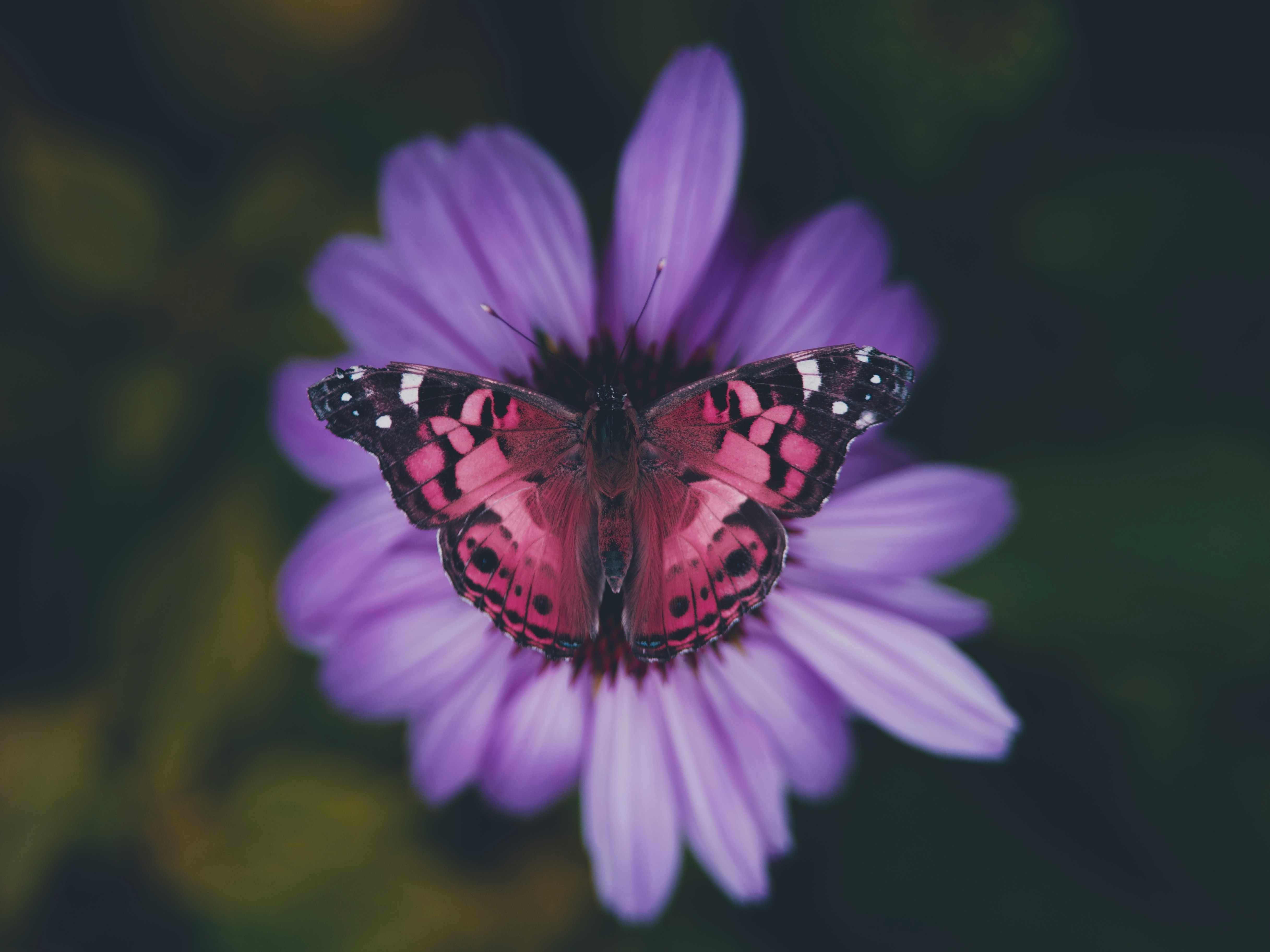
Why shades are the real challenge of color replacement
Tolerance is the central parameter. It defines the detection radius around the source color — how far a pixel's color can deviate from the picked color before being excluded from replacement. A low tolerance (5–15) only targets pixels nearly identical to the source — perfect for solid fills or uniformly lit studio backgrounds. A medium-to-high tolerance (35–65) includes the shadows and highlights of that color — necessary for working on natural photographs.
The choice of color space is equally important. RGB mode measures Euclidean distance between red, green and blue components — precise on digital images but less suited for photographic gradients. HSL mode separates hue (which color), saturation (how intense) and lightness (how bright), and weights them differently. Two pixels that are "the same red" at different brightnesses are recognized as belonging to the same group by HSL, but not by RGB. For photos of flowers, butterflies, clothing, or any object photographed in natural light, HSL produces more natural selections and softer edges.
Luminosity preservation is the third key option. When enabled, it replaces only the hue and saturation of each pixel, keeping its original lightness. A shadowed area stays dark, a highlighted area stays bright — only the color changes. Without this option, highlights become uniformly bright in the new color and shadows flatten. This is the difference between a photorealistic result and a flat painted look.
Frequently asked questions
How do I replace a color without losing the shades and gradients?
Use HSL mode with a tolerance between 35 and 60, and enable luminosity preservation. HSL groups pixels by hue regardless of their brightness, capturing lighter and darker variants of the same color — shadows included. Luminosity preservation keeps those brightness differences intact in the new color.
What tolerance should I use for a flower or butterfly photo?
For a natural photo with complex shading like a butterfly or a rose, start with a tolerance of 40 to 55 in HSL mode. If patches of the original color remain, increase slightly. If the replacement bleeds into other colors, reduce. Hue-only mode is a good alternative for subjects with strong shadow contrast.
Can I apply multiple replacement rules on the same image?
Yes, the tool supports up to 8 simultaneous rules. Each rule targets a different source color and replaces it with its own target color. Rules apply in order — the first matching rule wins. Useful for recoloring multiple zones of the same photo in one operation.
Does color replacement work on JPEG photos with compression artifacts?
Yes, but JPEG artifacts create slight color variations near edges. To compensate, raise the tolerance slightly and enable edge smoothing. Exporting the result as PNG avoids adding new compression artifacts.